 d15a232170
|
1 month ago | |
|---|---|---|
| assets | 1 month ago | |
| README.md | 1 month ago | |
README.md
OBS GStreamer Source Plugin - Setup Guide
Arch Linux (and variants)
Install everything in one step:
yay -S obs-gstreamer gst-plugins-bad-libs gst-plugin-va gst-plugin-qsv gst-libav
Skip to the OBS pipelines below.
Windows
1. Install GStreamer
Download the latest MinGW x86_64 runtime installer from the official GStreamer site:
https://gstreamer.freedesktop.org/download/#windows
The current stable version is 1.28.1. Make sure you pick the MinGW variant and the x86_64 architecture, not MSVC, and not x86.
Run the installer. When prompted, select the Complete installation to ensure all plugins (including libav, needed for software decoding) are included. It will install to C:\gstreamer\1.0\mingw_x86_64\ by default.
2. Add GStreamer to PATH
Open PowerShell and run:
[Environment]::SetEnvironmentVariable("PATH", "C:\gstreamer\1.0\mingw_x86_64\bin;" + [Environment]::GetEnvironmentVariable("PATH", "User"), "User")
This prepends the GStreamer binaries to your user PATH. You can also do this manually via System Properties > Environment Variables by adding C:\gstreamer\1.0\mingw_x86_64\bin to your user PATH.
3. Install obs-gstreamer
Download obs-gstreamer.zip from the latest release (currently v0.4.1):
https://github.com/fzwoch/obs-gstreamer/releases
Extract the zip and copy obs-gstreamer.dll from the windows folder to:
C:\ProgramData\obs-studio\plugins\obs-gstreamer\bin\64bit\
You may need to create the folders if they don't exist.
Restart OBS if it was running.
OBS Pipelines
Add a GStreamer Source in OBS and paste the appropriate pipeline. If the plugin is installed correctly, you should see it in the source list:
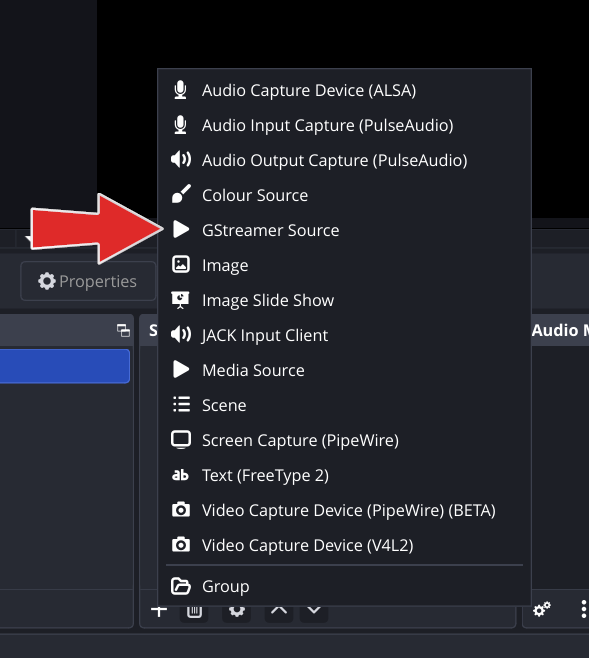
Replace <IP> with the server IP address, which will be provided during the event.
H.265 decoder reference
Use the tables below to find the right decoder element for your hardware. Replace <DECODER> in the game stream pipeline with your chosen element. Prefer vendor-specific over generic, and generic HW over software.
Linux
| Hardware | Type | Vendor-Specific | Generic HW | Software Fallback |
|---|---|---|---|---|
| NVIDIA GPU (Maxwell+) | dGPU | nvh265dec |
- | avdec_h265 |
| Intel iGPU (Skylake+) | iGPU | qsvh265dec |
vah265dec |
avdec_h265 |
| Intel Arc | dGPU | qsvh265dec |
vah265dec |
avdec_h265 |
| AMD iGPU (Ryzen 2000G+) | iGPU | vah265dec |
- | avdec_h265 |
| AMD dGPU (Polaris+) | dGPU | vah265dec |
- | avdec_h265 |
| No GPU / F-series / non-G Ryzen | CPU | - | - | avdec_h265 |
Windows
| Hardware | Type | Vendor-Specific | Generic HW | Software Fallback |
|---|---|---|---|---|
| NVIDIA GPU (Maxwell+) | dGPU | nvh265dec |
d3d11h265dec |
avdec_h265 |
| Intel iGPU (Skylake+) | iGPU | qsvh265dec |
d3d11h265dec |
avdec_h265 |
| Intel Arc | dGPU | qsvh265dec |
d3d11h265dec |
avdec_h265 |
| AMD iGPU (Ryzen 2000G+) | iGPU | - | d3d11h265dec |
avdec_h265 |
| AMD dGPU (Polaris+) | dGPU | - | d3d11h265dec |
avdec_h265 |
| No GPU / F-series / non-G Ryzen | CPU | - | - | avdec_h265 |
Game stream pipeline
Game stream (H.265 over TCP with audio):
tcpclientsrc port=5000 host=<IP> ! matroskademux name=demux ! queue ! h265parse ! <DECODER> ! videorate ! videoconvert ! video. demux. ! queue ! audiorate ! audioconvert ! audio.
Replace <DECODER> with the element from the tables above (e.g. nvh265dec, qsvh265dec, vah265dec, d3d11h265dec, avdec_h265).
Webcam (MJPEG over TCP):
tcpclientsrc port=5001 host=<IP> do-timestamp=true ! multipartdemux ! image/jpeg, framerate=30/1 ! jpegparse ! jpegdec ! queue ! video.
For additional webcams, duplicate the pipeline and increment the port number (5002, 5003, etc.).
TomorrowLAN stream layout
- Quad stream: one player cam per IP (4 IPs total, one webcam each).
- Main stream: two player cams per IP (2 IPs total, two webcams each, ports
5001and5002).
Troubleshooting
GStreamer Source not showing in OBS (Windows)
Step 1: Restart OBS
Completely close OBS and reopen it. The plugin is only loaded when OBS starts.
Step 2: Check the plugin file is in the right place
Open File Explorer and navigate to:
C:\ProgramData\obs-studio\plugins\obs-gstreamer\bin\64bit\
You should see obs-gstreamer.dll in that folder. If the ProgramData folder is hidden, type the path directly into the File Explorer address bar.
If the folders don't exist, create them yourself:
- Open
C:\ProgramData\ - Create
obs-studiofolder (if it doesn't exist) - Inside it, create
plugins - Inside that, create
obs-gstreamer - Inside that, create
bin - Inside that, create
64bit - Place
obs-gstreamer.dllin the64bitfolder
Step 3: Check that GStreamer is installed and in your PATH
Open PowerShell (press the Windows key, type powershell, hit Enter) and run:
gst-launch-1.0 --version
If you see a version number (e.g. GStreamer 1.28.1), GStreamer is correctly in your PATH.
If you get an error like 'gst-launch-1.0' is not recognized, GStreamer is either not installed or not in your PATH. Go back to step 2 of the Windows setup above and re-run the PowerShell command to add it to your PATH. Then close and reopen PowerShell and try again.
Step 4: Check for DLL conflicts
Some software (e.g. Tesseract-OCR, GIMP) installs its own copy of GStreamer or GLib DLLs. If one of these appears earlier in your PATH than the GStreamer bin folder, OBS may load the wrong DLLs and fail silently.
To fix this, open System Properties > Environment Variables, find Path under User variables, and make sure C:\gstreamer\1.0\mingw_x86_64\bin is at the top of the list. You can select it and click Move Up until it's first.